App Navigation
TournaQ is built around two top-level destinations: TournaQ Arena for all games and tournaments, and Administration for managing players, teams, and groups. Both are reachable from the Home screen. A side drawer gives access to secondary screens — Settings, Contact & About, and Sponsoring & Promo. The whole structure is designed to get an organiser from opening the app to a live scorecard in three taps.
Navigation Drawer
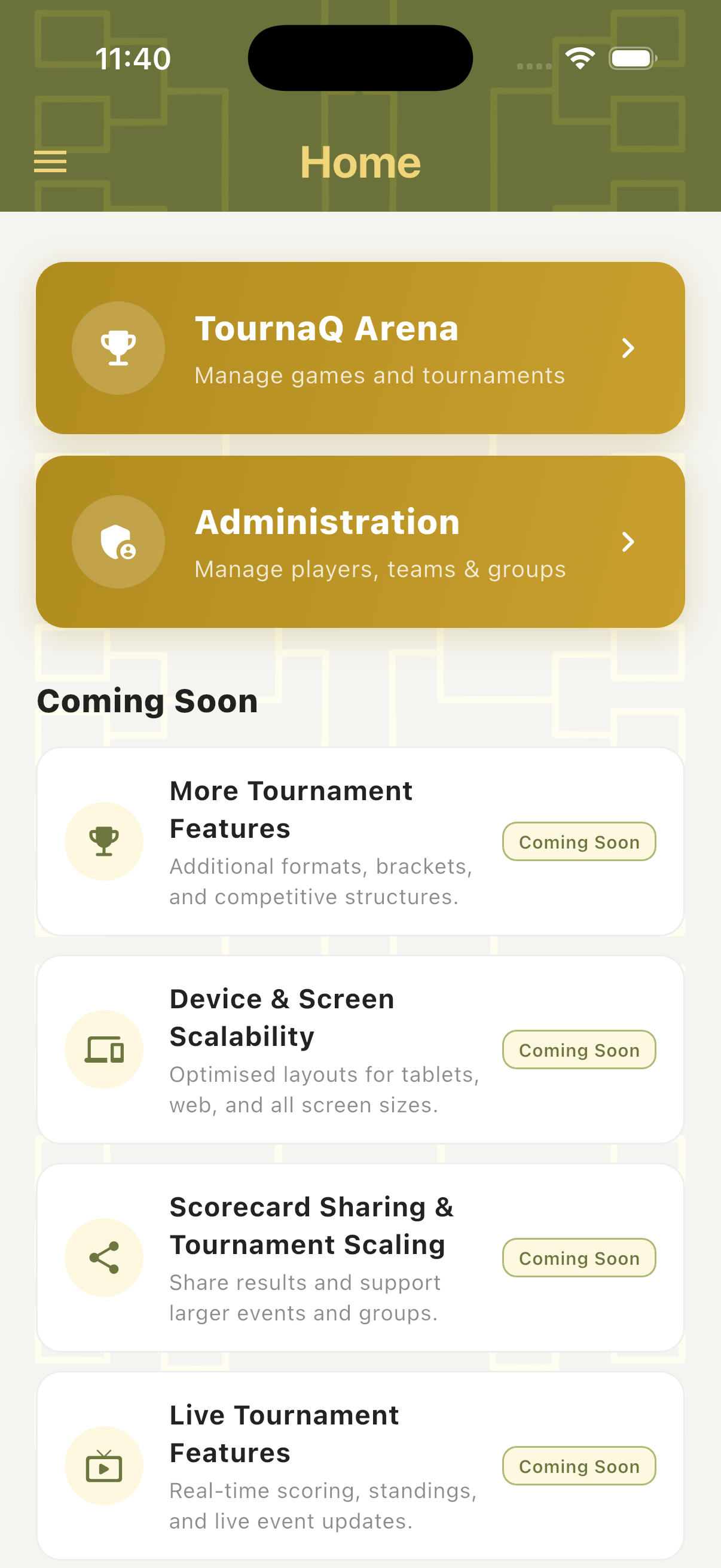
Tap the hamburger icon in the top-left corner of any main screen to open the side drawer. The drawer shows the TournaQ logo and tagline at the top, followed by links to Home, Sponsoring & Promo, Contact & About, and Settings. It is available from the Home screen and any top-level section.
Side Drawer
The drawer slides in from the left and gives access to all secondary destinations in the app. The TournaQ logo and "Scoring, Games and Tournament Management" tagline sit at the top. Below are four navigation items: Home (returns to the main screen), Sponsoring & Promo, Contact & About, and Settings. Each item has an icon and a chevron indicating it navigates forward.
Settings
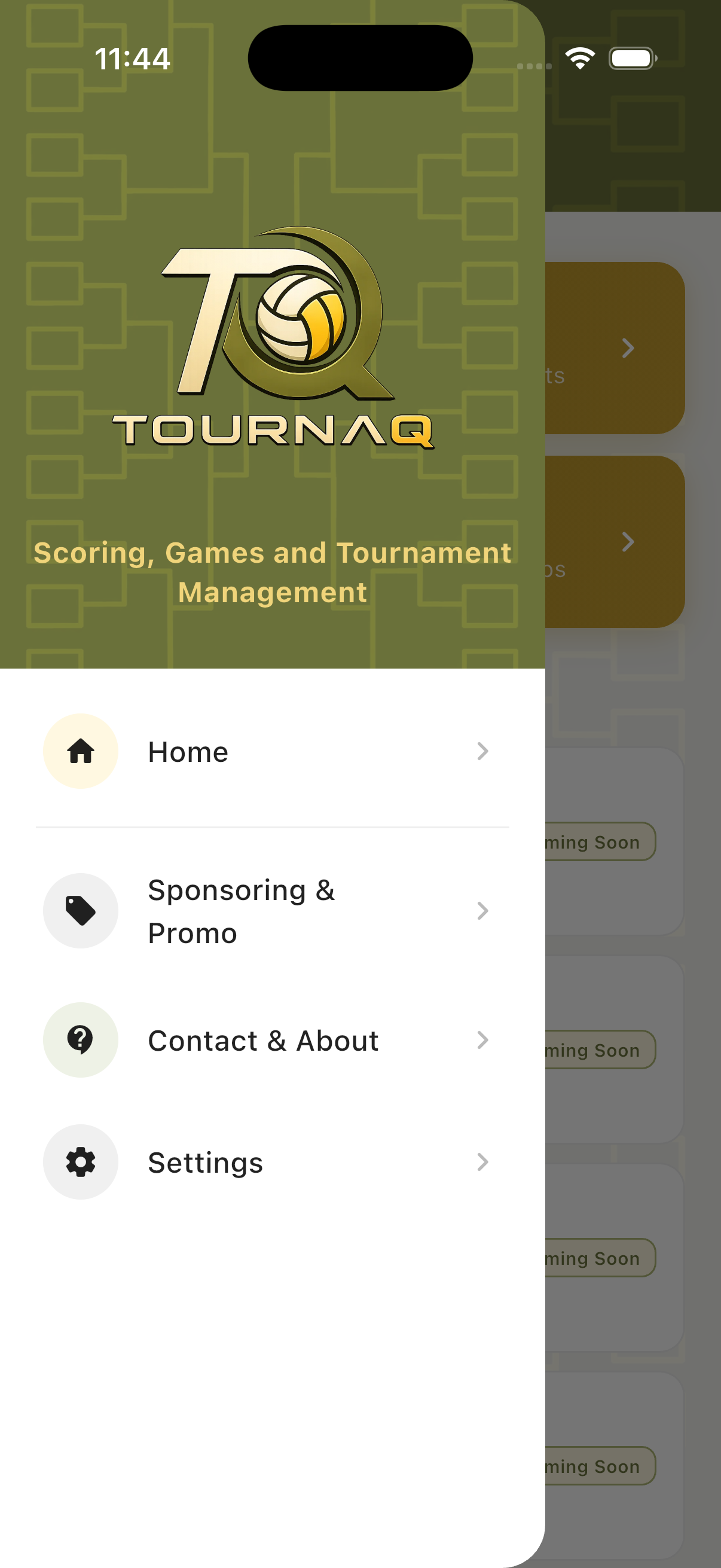
The Settings screen is accessible from the drawer. It offers a Language section with four options — Automatic (device default), English, Deutsch, and Español — and a Legal section with a link to Privacy Options for managing ad consent choices. The active language is highlighted in dark green.
TournaQ Arena
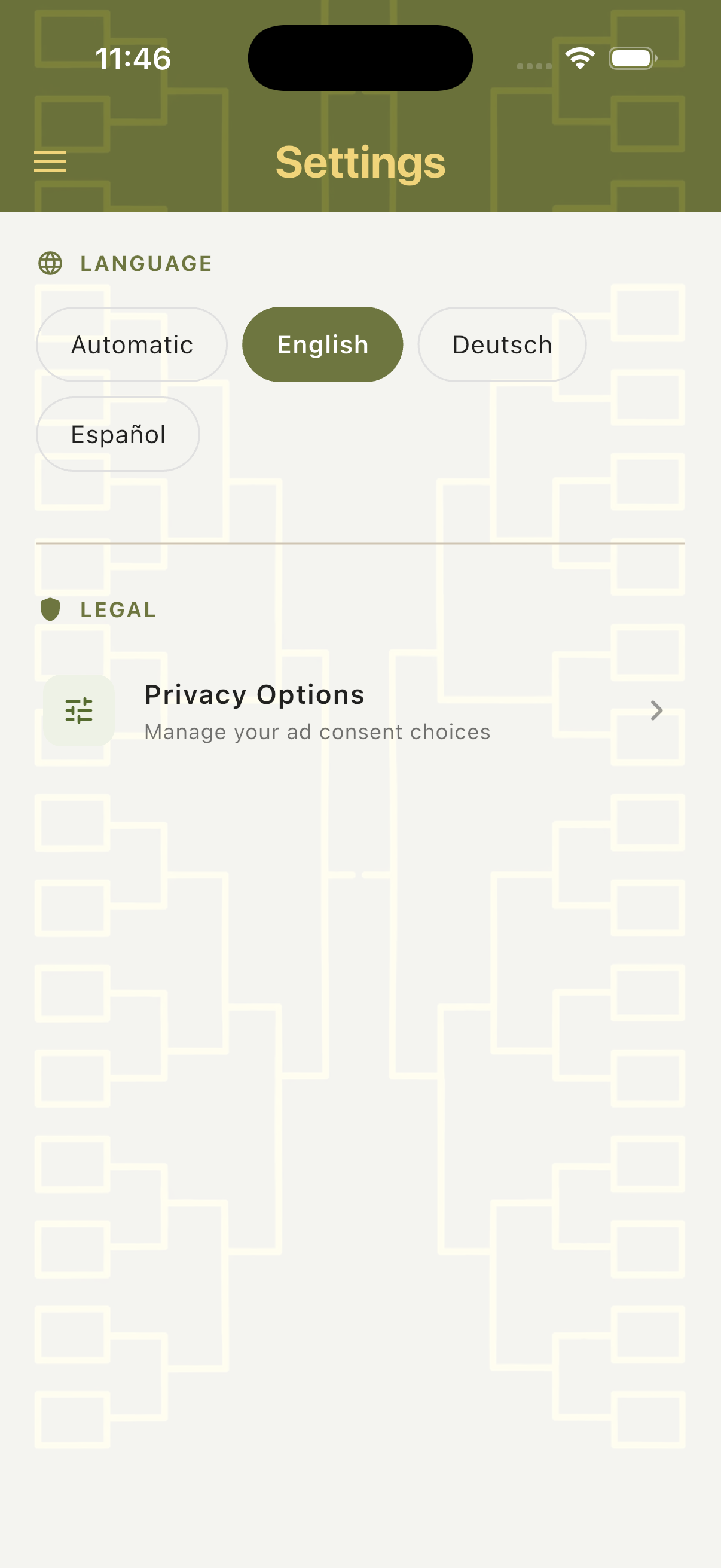
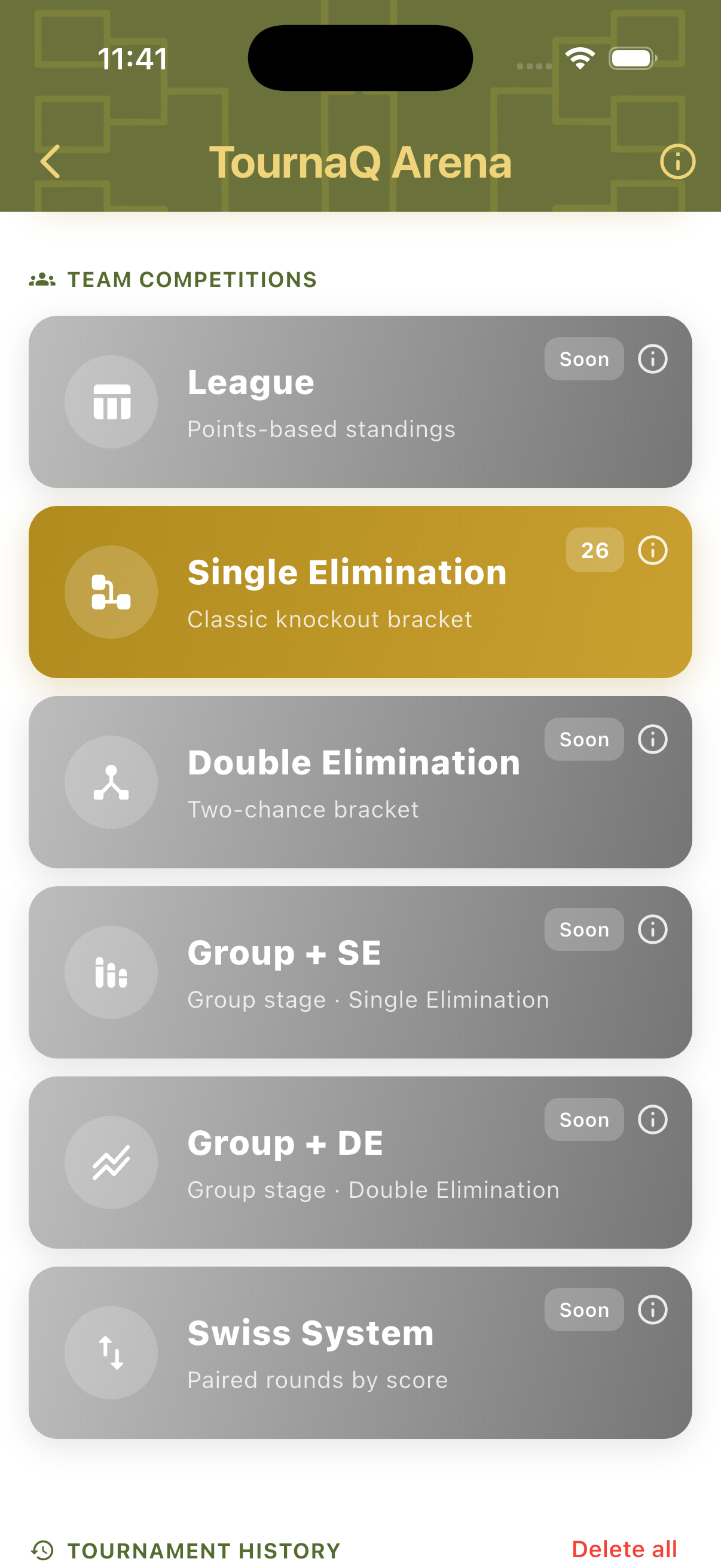
The Arena is the central hub for all games and tournaments. It groups every mode into three categories — Quick Games, Single Competitions & Socials, and Team Competitions — each shown as a large tappable card. Available modes are shown in gold; modes coming soon appear in grey with a "Soon" badge. A tournament count badge on each available card shows how many tournaments have been run in that mode. An info icon on every card opens a built-in description of the mode before you commit to it.
Quick Games & Socials
The top of the Arena lists Quick Games (ad-hoc scored matches with minimal setup) and the Single Competitions & Socials group — Social Scrambles (21 tournaments), Kings of the Court (20), and Doghouses (10). All three social modes are available and show their tournament history count as a badge.
Team Competitions
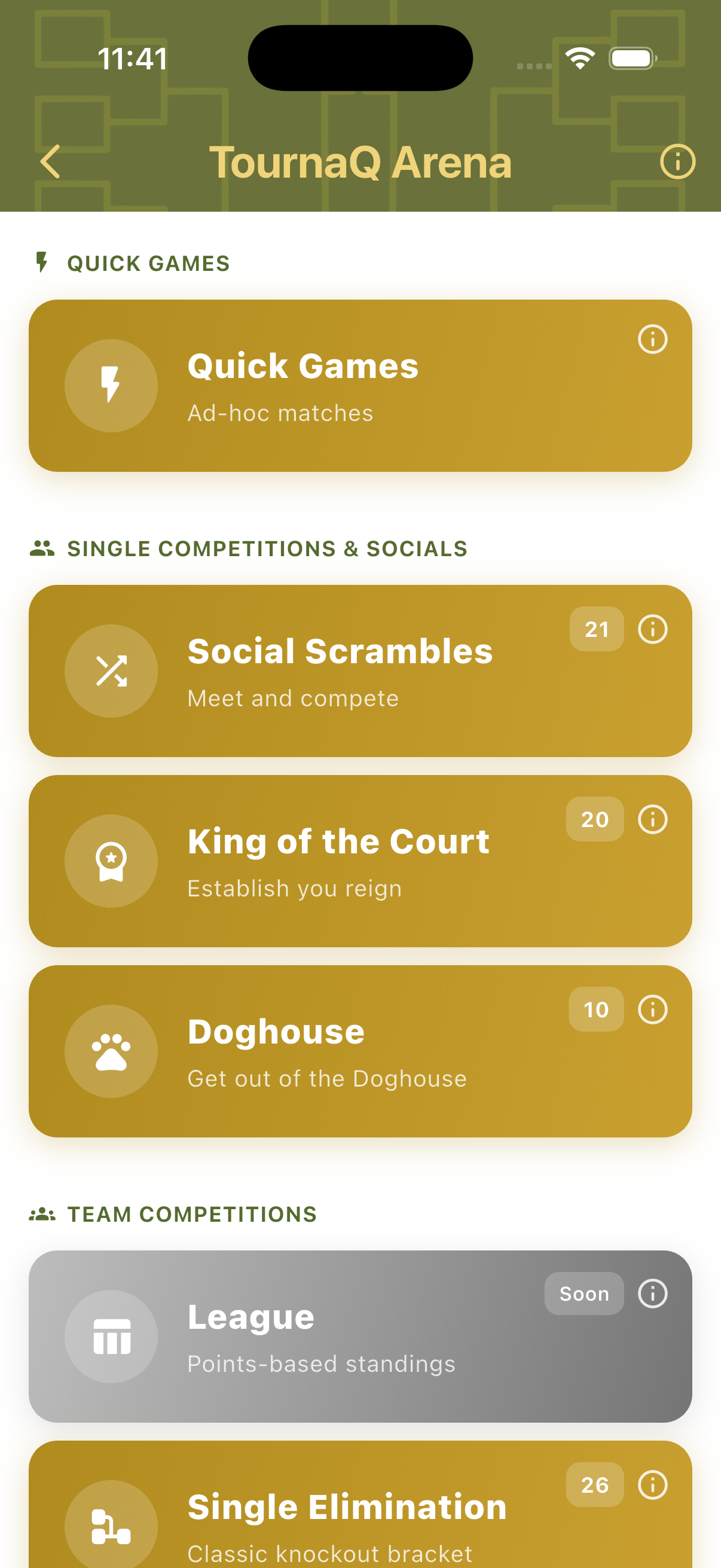
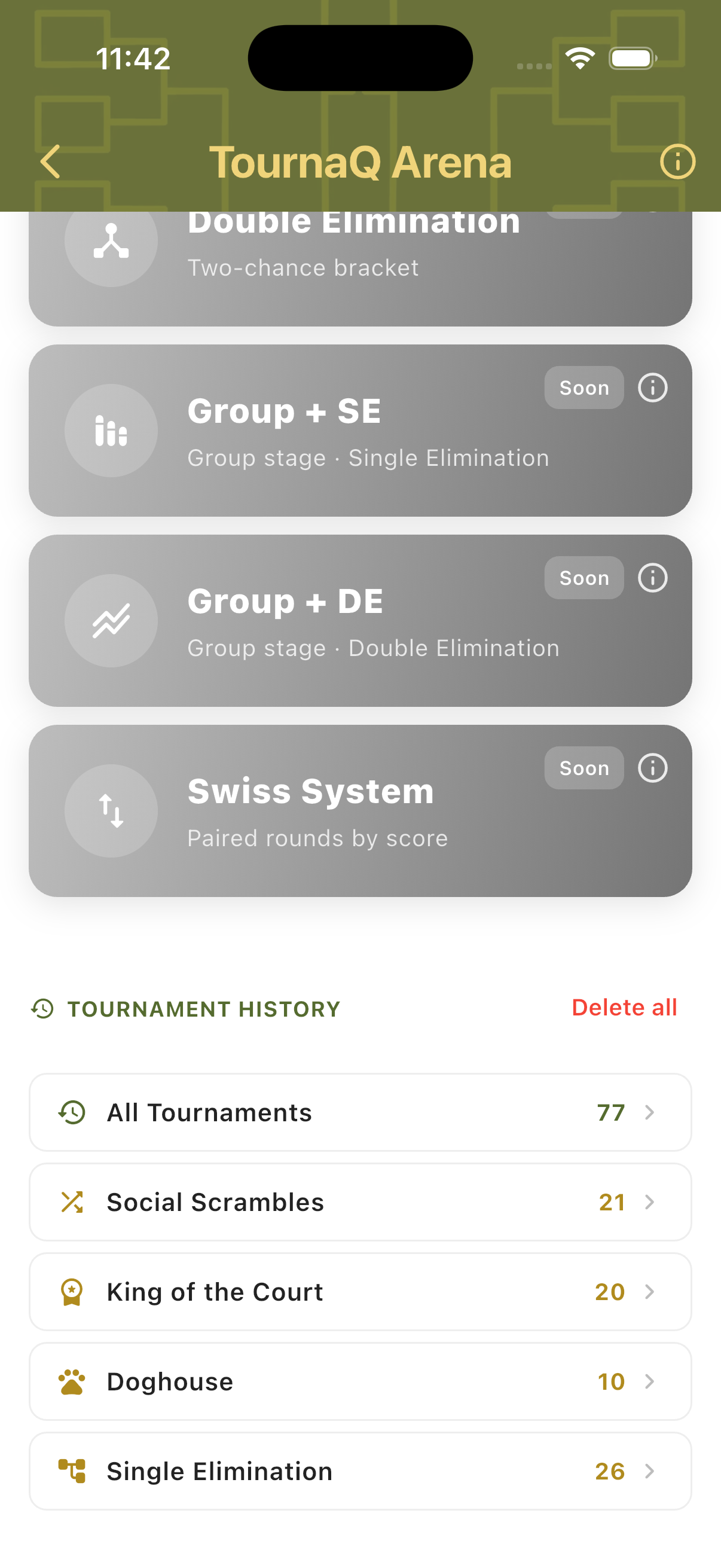
The Team Competitions section lists bracket and standings formats. Eliminations (26 tournaments) is available. Leagues, TournaQ Classics, and Swiss Systems are all marked Soon. Below the mode list, a Tournament History section groups all past tournaments by mode with a total count.
Built-in Help
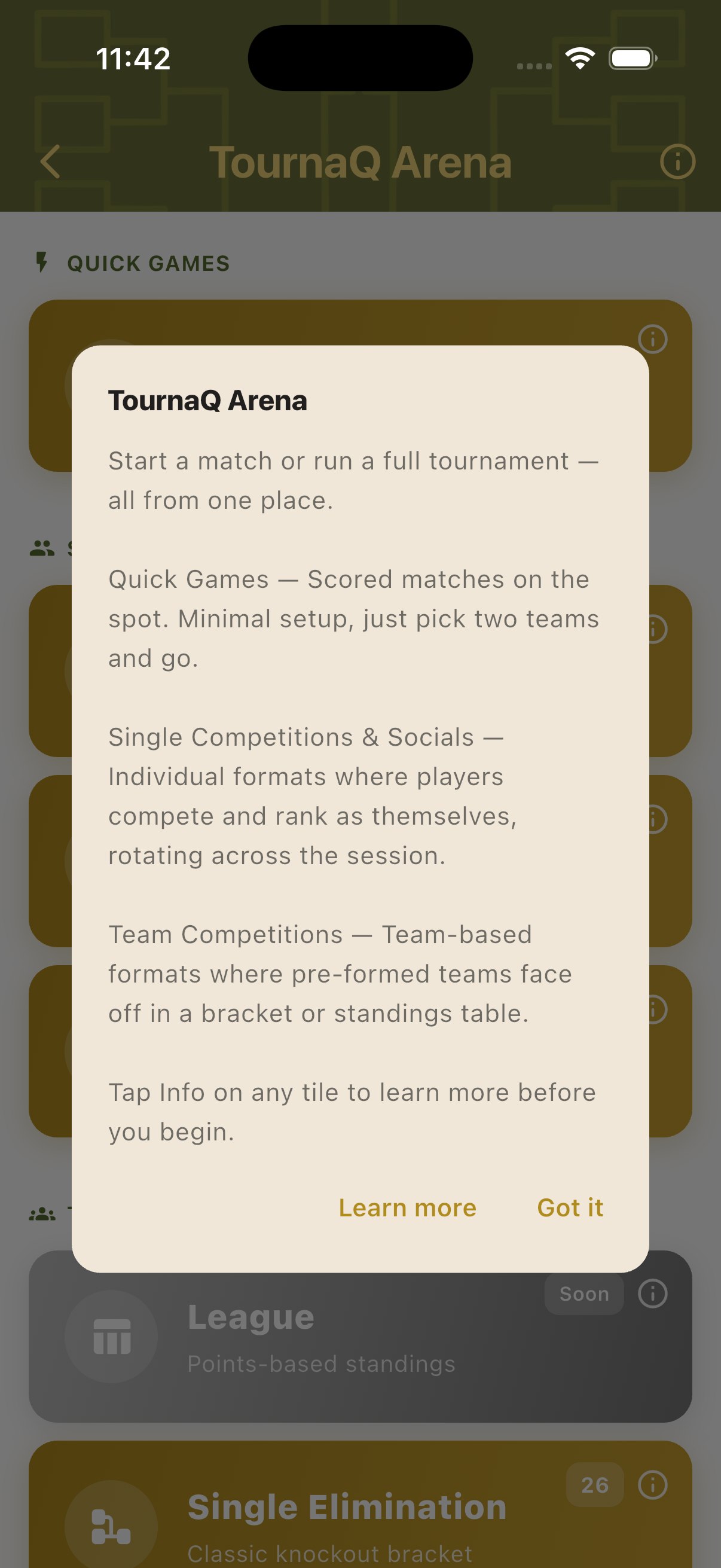
Tap the info icon on any mode card to see a description before starting. The Arena help tooltip explains all three category types: Quick Games for scored matches on the spot; Single Competitions & Socials for individual-entry rotating formats; and Team Competitions for pre-formed team brackets. Tap "Learn more" to go to the website, or "Got it" to dismiss.
From Arena to Scorecard
Every tournament follows the same three-step path: tap a mode in the Arena, configure the tournament setup, then open a match to start scoring. The path is consistent across all modes — once you know it for one format, you know it for all of them.
1. Tournament Setup
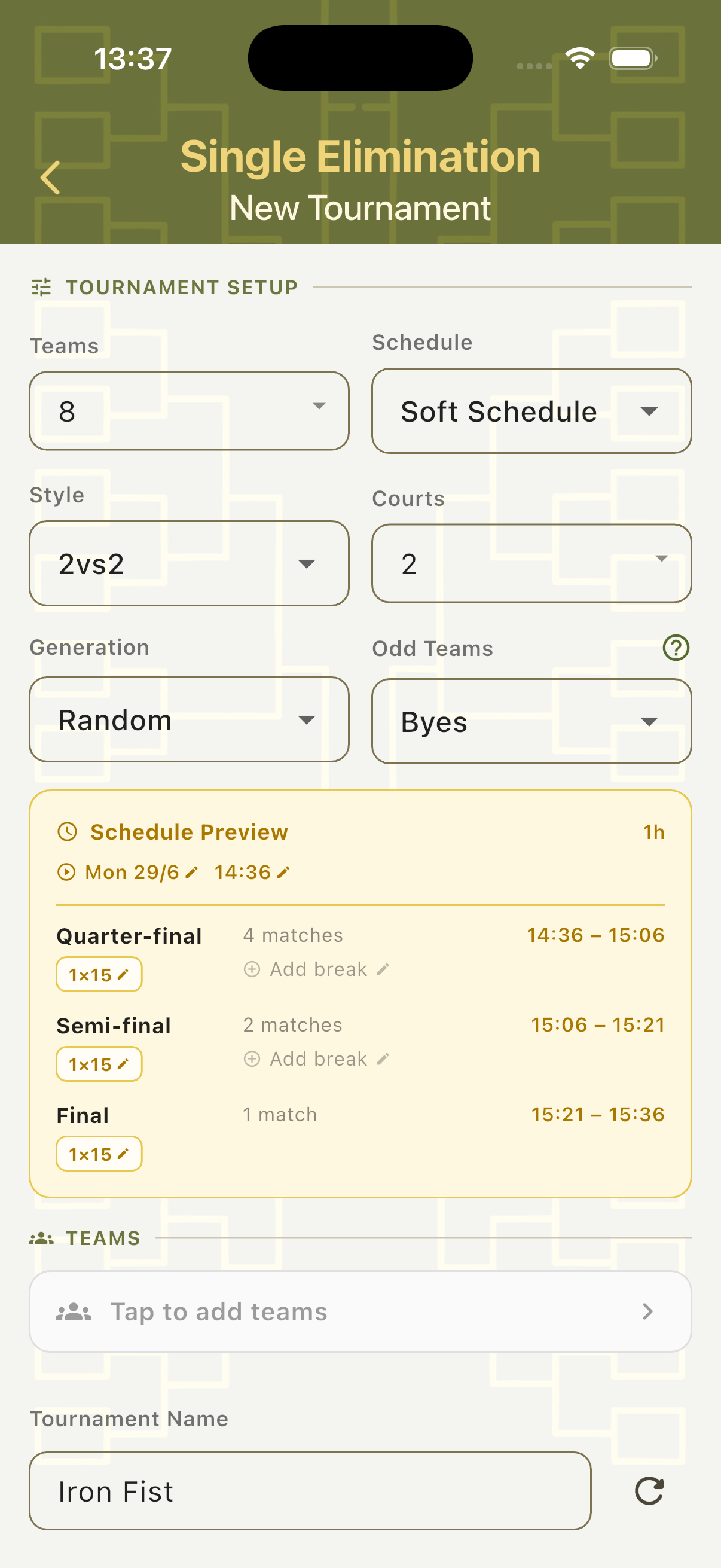
Tap any available mode in the Arena to enter its hub, then tap New Tournament. The setup form lets you configure teams, schedule type, match style, courts, and any mode-specific options. A live Schedule Preview shows the full round structure and time slots as you adjust settings.
2. Tournament Dashboard
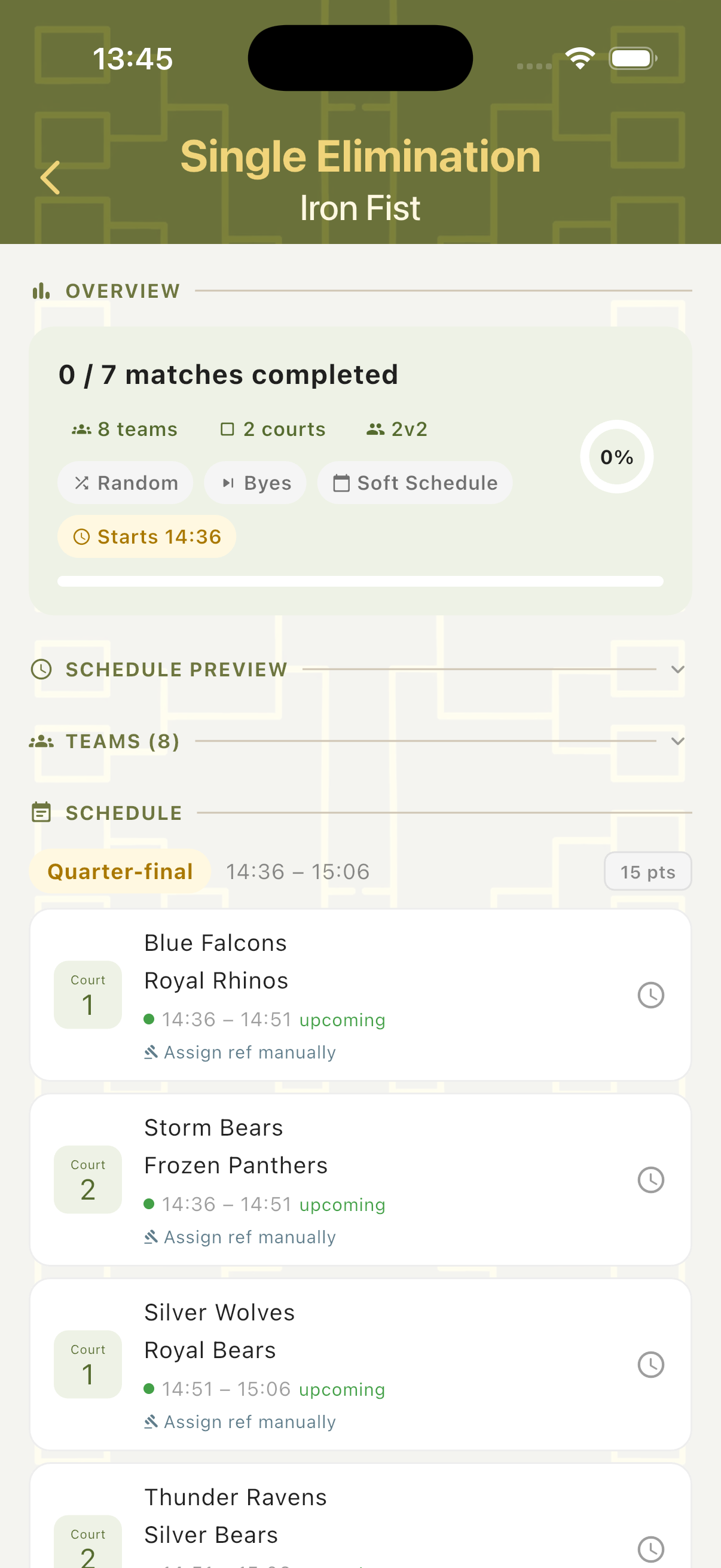
After creating the tournament, the dashboard shows the full match schedule grouped by round — with team names, courts, times, and match status. An overview card at the top shows progress, configuration, and a completion percentage. Tap any match to open its scorecard.
3. Live Scorecard
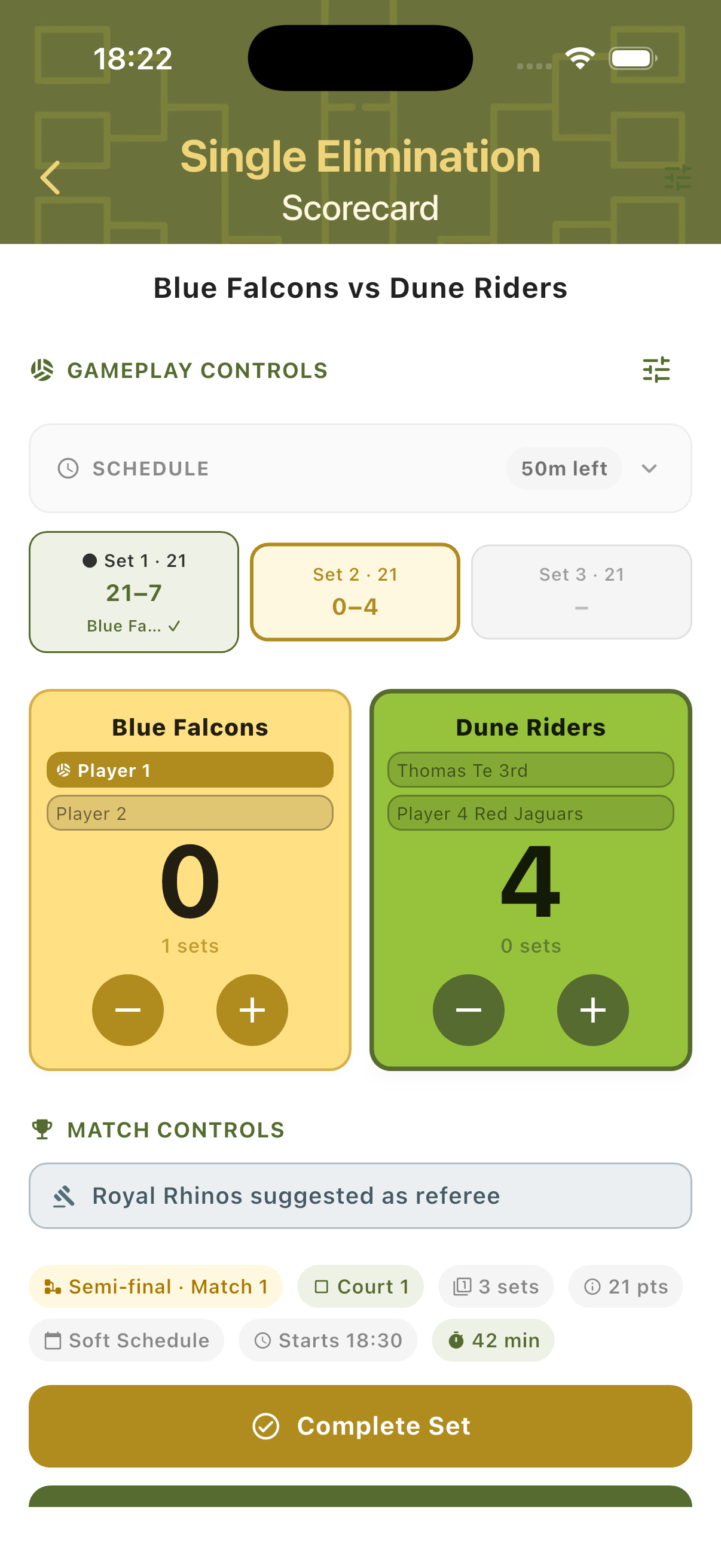
The scorecard is the match scoring screen. It shows both teams with player names, the current set score, serving player, match context chips, and a suggested referee. Use the + and − buttons to track points. All match controls are on a single screen — no navigation needed mid-match.
Tournament History & Discovery
All past tournaments are saved locally and accessible from the Arena's Tournament History section. History is grouped by mode so you can jump directly to past Social Scrambles, Kings of the Court sessions, or Eliminations brackets. Coming Soon feature cards in the Arena and Home screen link directly to the website and feedback form.
Tournament History
The Tournament History panel at the bottom of the Arena lists a total count across all modes (77 in this example), plus per-mode entries: Social Scrambles (21), Kings of the Court (20), Doghouses (10), and Eliminations (26). Tapping any entry opens that mode's history list, filtered to show only those past tournaments.
Coming Soon Cards
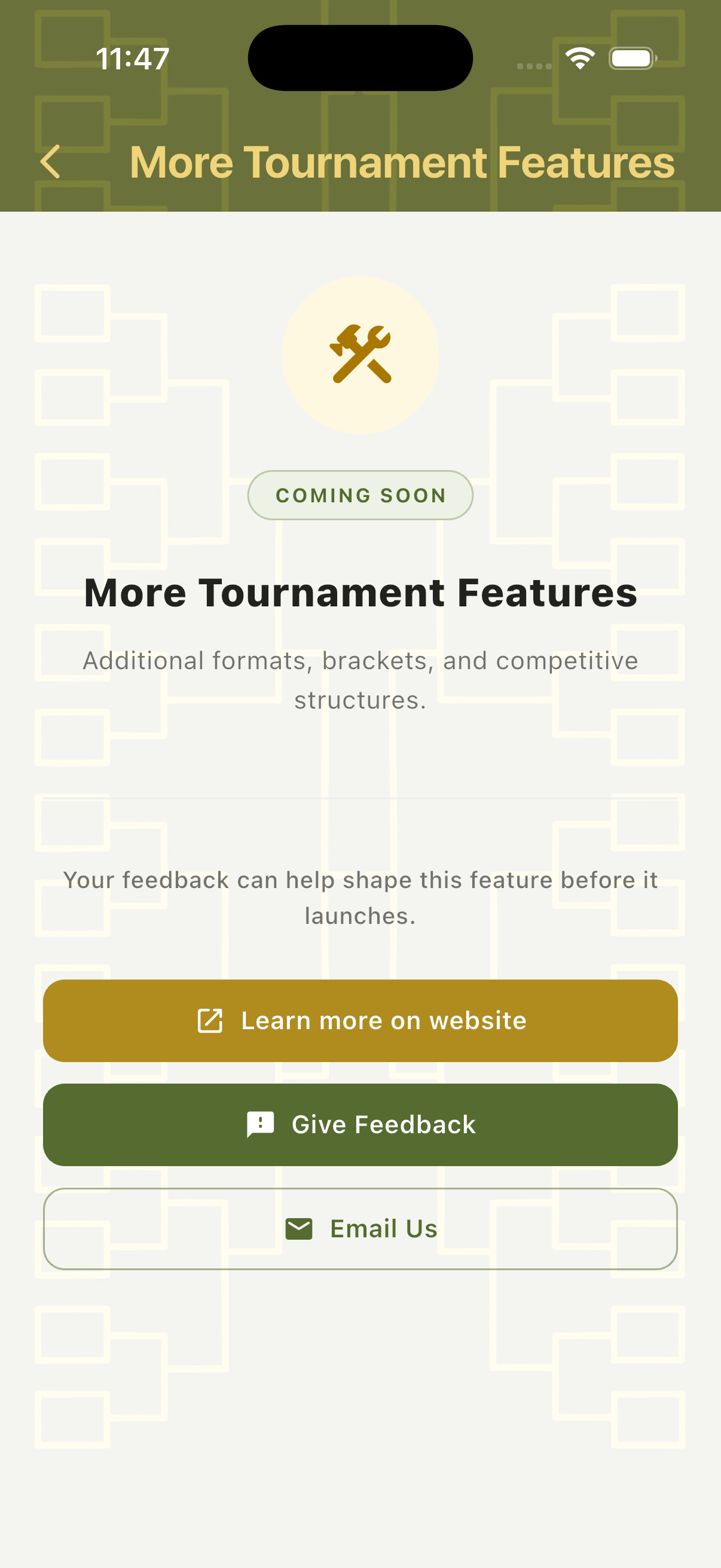
Modes that are not yet available appear as Coming Soon cards both in the Arena and on the Home screen. Each card shows the mode name, a brief description, and a Coming Soon badge. Tapping a card opens a detail screen with three options: Learn more on website, Give Feedback, and Email Us — so users can follow development and shape upcoming releases.
Supporting Screens
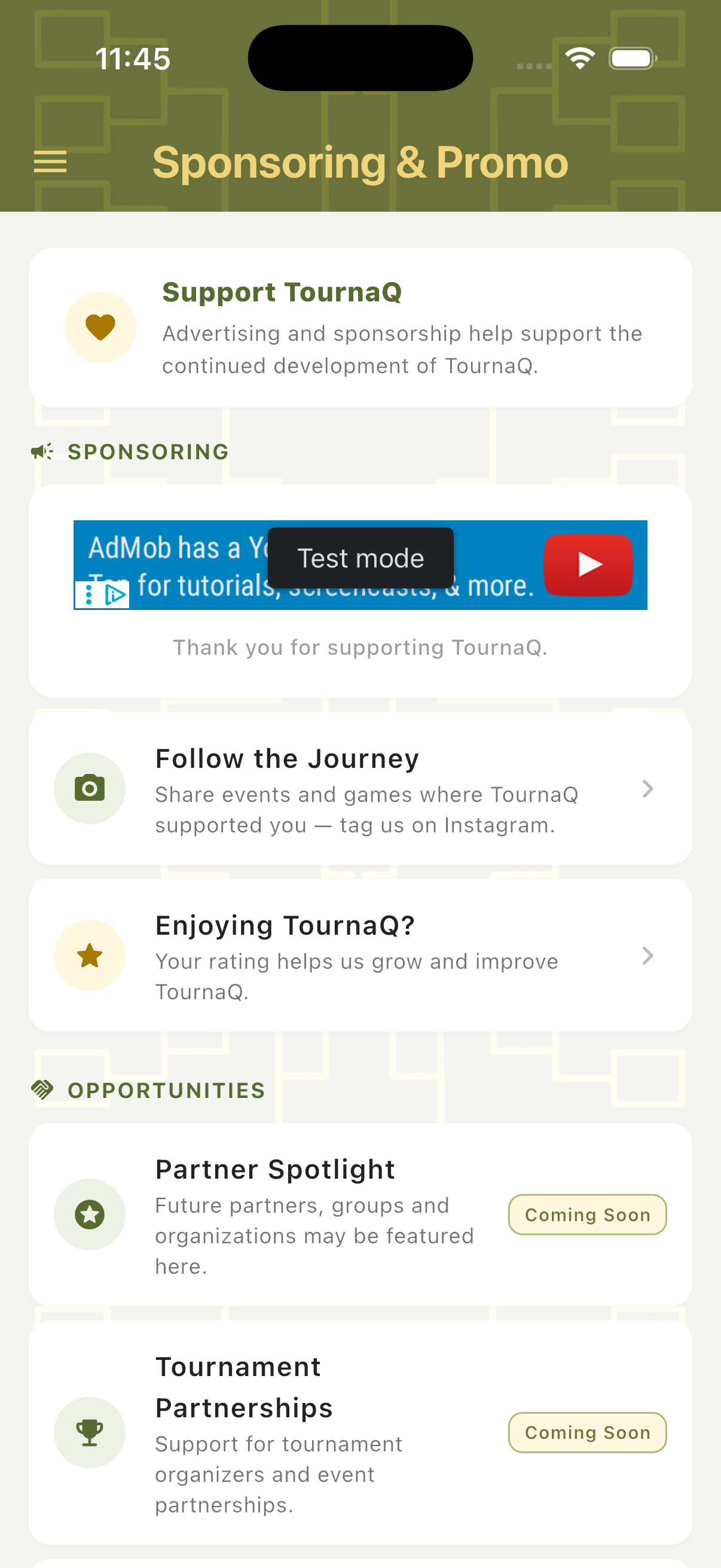
The drawer gives access to three supporting sections alongside the main app flow. Contact & About covers social links, support channels, legal documents, and the app version. Sponsoring & Promo explains how advertising supports development and lists upcoming partnership opportunities. Settings handles language preference and privacy choices.
Contact & About
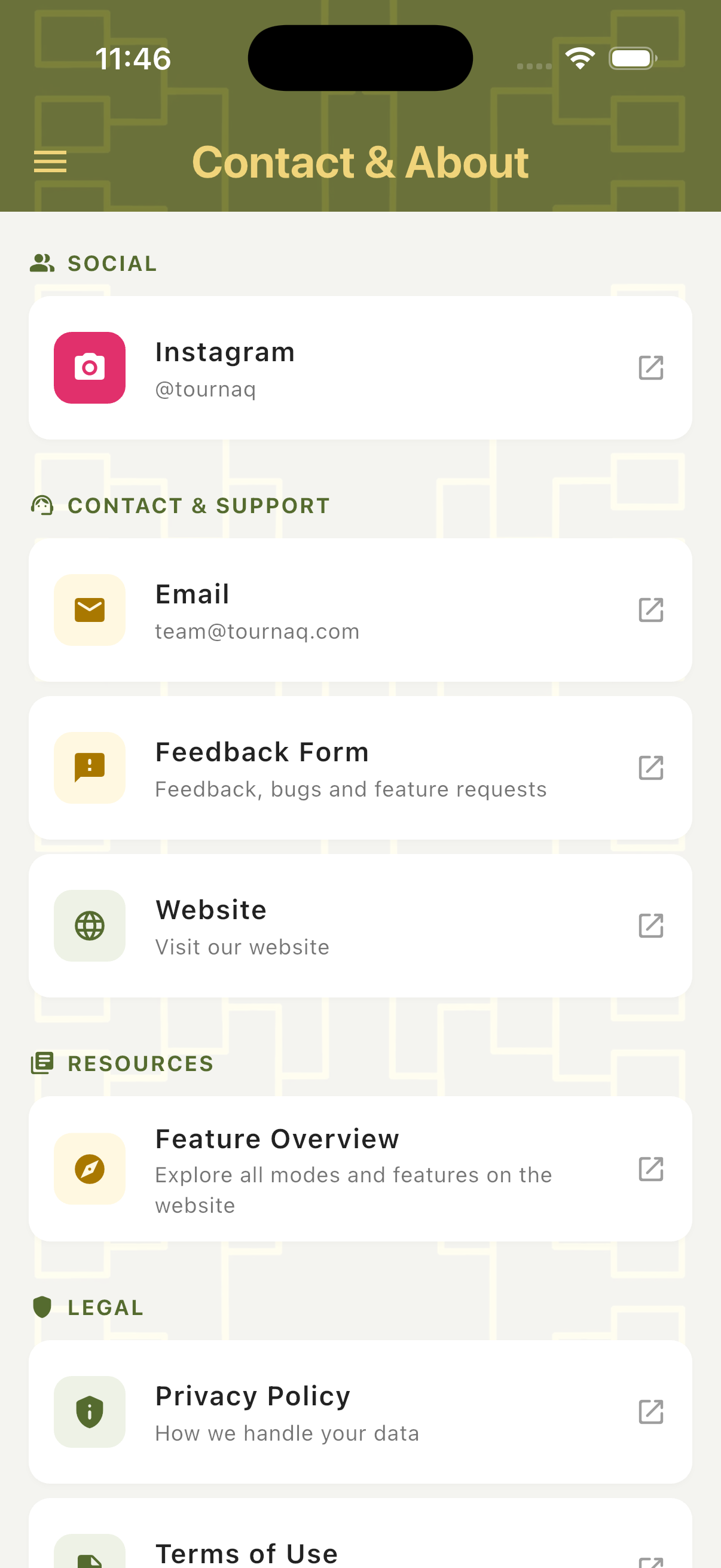
The Contact & About screen is organised into four groups: Social (Instagram @tournaq), Contact & Support (Email, Feedback Form, Website), Resources (Feature Overview — links to the website), and Legal (Privacy Policy, Terms of Use, Legal Notice). The app version number appears at the bottom of the screen.
Sponsoring & Promo
The Sponsoring & Promo screen explains that advertising helps fund TournaQ's development and shows the current ad placement. It also lists ways to support the app: following on Instagram, leaving an app store rating, and upcoming partnership features — Partner Spotlight, Tournament Partnerships, and Promote Your Event — all marked Coming Soon.
Navigation Features
The full navigation structure is live today — the Home screen, TournaQ Arena, Administration, More, and every screen behind them. All of it works offline, directly on the device.
-
Available
Three top-level destinations
The Home screen splits the app into TournaQ Arena for all games and tournaments, Administration for players, teams, and groups, and More for everything alongside them. Everything else branches off these three.
-
Available
More
More collects the screens that sit beside the main flow: Contact & About (social links, support channels, legal documents, and the app version), Sponsoring & Promo (advertising and partnership opportunities), and Settings.
-
Available
Straightforward navigation
Every route follows the same shape — from a top-level destination into a hub, from the hub down to the next level of detail, and back the same way. No hidden paths and no dead ends.
-
Available
TournaQ Arena mode hub
Every game and tournament mode is grouped into three categories — Quick Games, Single Competitions & Socials, and Team Competitions — each a large tappable card.
-
Available
Mode availability at a glance
Available modes are shown in gold with a badge counting the tournaments already played in that mode. Modes still in development appear in grey with a "Soon" badge.
-
Available
Built-in mode help
An info icon on every mode card explains the format before you commit to it, with a "Learn more" link through to the website.
-
Available
Three-step path to a scorecard
Pick a mode, configure the setup, open a match. The path is identical in every format — learn it once and it applies to all of them.
-
Available
Tournament dashboard
Each tournament opens on a dashboard showing the full schedule grouped by round, with team names, courts, times, match status, and a completion percentage. Tap any match to score it.
-
Available
Tournament history by mode
Past tournaments are saved on the device and listed in the Arena's history panel, grouped by mode with a total count — so any previous event is a couple of taps away.
-
Available
Coming Soon feature cards
Modes and features still in development appear as cards in the Arena and on the Home screen, each linking through to the website, the feedback form, and email.
-
Available
Language & privacy settings
Settings offers four language options — Automatic, English, Deutsch, Español — and a Privacy Options link for managing ad consent choices.
Have a question about app navigation, spotted something missing, or want to suggest an improvement?